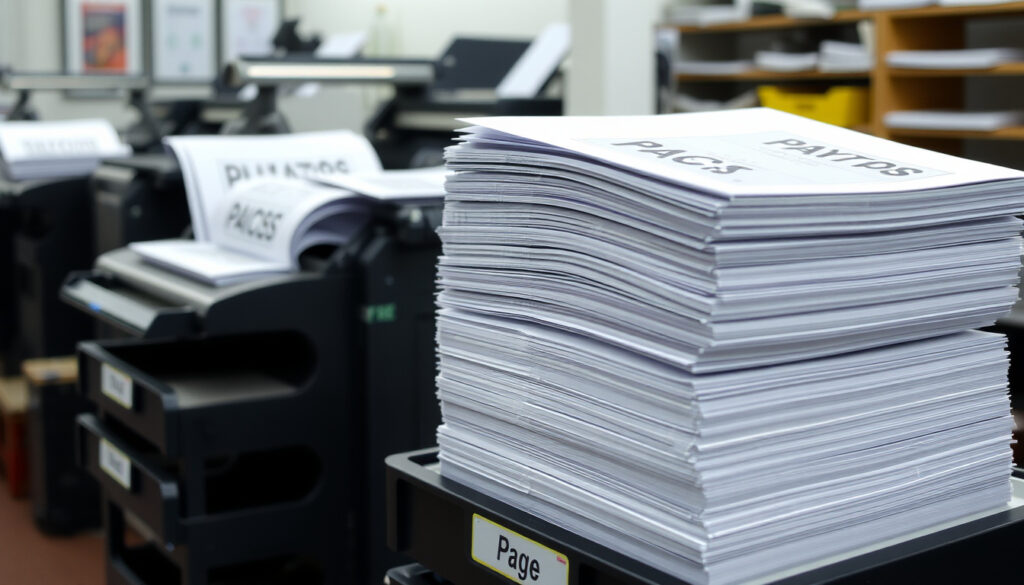
What Does Collate Mean When Printing? Examples & Guide
If you’ve ever printed multiple copies of a report and ended up with a messy stack of pages, you already know the problem collate was designed to solve. Collate is a simple print setting that tells your printer to output each copy as a complete, page‑numbered set — so you can grab a finished booklet without extra sorting.
Collate vs. Uncollated: Collated prints full sets in page order; uncollated groups all copies of each page together ·
Printers with Collate Option: Most office laser and inkjet printers support collate in the print dialog ·
Collate for Double‑Sided: Collate works independently of duplex; you can collate single‑ or double‑sided prints ·
Common Collate Setting Location: Found under “Preferences” or “Properties” in the print dialog, often labeled “Collate” or “Collated”
Quick snapshot
- Collate prints each copy as a complete set in page order (Printing Center USA (online printer)).
- Eliminates manual sorting for multi‑page, multi‑copy jobs (PaperCut (print management software)).
- Some printer drivers label collate differently (e.g., “Collated” vs “Collate”) (Gordon Flesch Company (office equipment dealer)).
- Exact location of the setting varies by operating system and printer brand. (Gordon Flesch Company (office equipment dealer))
- Works with single‑sided, double‑sided, and stapled outputs – but driver support varies. (Gordon Flesch Company (office equipment dealer))
- Multi‑page documents like reports, proposals, and training packets (Printing Center USA (online printer)).
- Any job with multiple copies that will be handed out directly (Gordon Flesch Company (office equipment dealer)).
- Booklets, catalogs, and manuals that need to stay in order (Printing Center USA (online printer)).
- Check the print dialog for the collate option before sending a multi‑copy job (PaperCut (print management software)).
- If the option is greyed out, update your printer driver or check the number of copies (Gordon Flesch Company (office equipment dealer)).
- Remember that collate and duplex are independent – you can use both together (PaperCut (print management software)).
Here are the key facts about collate and its relationship with duplex.
| Label | Value |
|---|---|
| Collate Definition | Printer arranges pages into complete, ordered sets before the next copy. |
| Duplex Definition | Printer prints on both sides of the paper (double‑sided). |
| Collate + Duplex | Both can be enabled together; they are independent settings. |
| Collate Example (3 copies, 5 pages) | Output: Copy 1 (p.1,2,3), Copy 2 (p.1,2,3), Copy 3 (p.1,2,3). |
| Uncollated Example (3 copies, 5 pages) | Output: p.1 (×3), p.2 (×3), p.3 (×3). |
What Does Collate Mean When Printing?
Simple explanation of collate
- Collate means the printer outputs each copy as a complete, page‑number‑ordered set (Printing Center USA (online printer)).
- Without collate, the printer may output all copies of page 1 first, then all copies of page 2 – creating manual sorting work (PaperCut (print management software)).
- The setting is usually a checkbox or button labeled “Collate” in the print dialog (Gordon Flesch Company (office equipment dealer)).
Think of a 3‑page document printed in 5 copies. With collate on, you get 5 neat stacks, each containing page 1, 2, and 3 in order. With collate off, you get a pile of 15 pages: pages 1–1–1–1–1, then 2–2–2–2–2, then 3–3–3–3–3. As Green Office Partner (office technology provider) describes it, uncollated printing groups identical pages together rather than building complete sets.
For anyone who needs finished documents fast, collate is the difference between walking to the printer and grabbing a stack that’s ready to hand out – and spending five minutes re‑sorting paper by hand.
How collate changes multi‑copy print jobs
- With collate: each copy comes out as a complete document, from first page to last.
- Without collate: you collect all copies of each page in a stack, then manually collate after printing.
- For a 10‑page job at 50 copies, collated output produces 50 ready‑to‑use sets (Printing Center USA (online printer)).
The implication: collate is a time‑saving feature that becomes essential as the number of pages and copies grows. For single‑page jobs or a single copy, the setting does nothing – but for any multi‑page, multi‑copy project, it’s the difference between order and chaos.
Collated vs Uncollated: What Is the Difference?
Two print jobs, same document, same number of copies – but the output looks completely different. The table below shows the key contrast.
| Aspect | Collated | Uncollated |
|---|---|---|
| Output order | Copy 1 (p.1–2–3), Copy 2 (p.1–2–3), etc. | All p.1s, then all p.2s, then all p.3s |
| Best for | Reports, booklets, meeting handouts – ready to distribute | Single‑page forms, flyers, or when you need to insert pages later |
| Manual sorting after printing | None – grab and go | Required unless only one page per copy |
When to choose collated
- Multiple copies of a multi‑page report, proposal, or training packet (Gordon Flesch Company (office equipment dealer)).
- Any document you intend to hand out, bind, or staple directly after printing (Gordon Flesch Company (office equipment dealer)).
- Booklets, catalogs, manuals – anything where page order matters.
When to choose uncollated
- Single‑page prints like flyers, forms, or certificates.
- When you need to insert a specific page into each copy after printing.
- High‑speed environments where manual collation is acceptable or even preferred.
The trade‑off: collate saves time on the back end but may slow down printing slightly because the printer must construct each set individually. For most office tasks, the time saved later far outweighs the extra seconds.
Should I Use Collate When Printing?
Do you always need collate?
- No – when printing a single copy, collate has no effect (Gordon Flesch Company (office equipment dealer)).
- Collate is optional for multi‑page, multi‑copy jobs – but the decision hinges on what you’re going to do with the printed pages.
- If the pages will be handed out as sets, collate is usually the right choice. If they will be inserted into envelopes or organized by page later, uncollated might work better.
Some printer drivers don’t enable collate by default. If you send a 20‑page document with 10 copies without checking, you’ll get 200 pages in the output tray – all page 1s, then all page 2s, etc. Always verify the collate setting before hitting print.
Cost and speed considerations
- Collated printing may be slightly slower because the printer re‑orders pages between sets (especially on older laser printers).
- Uncollated can be faster for short runs – but the time “saved” can vanish when you have to manually collate 50 copies.
- Paper waste is the same either way; the difference is in labor.
The pattern: choose collate when your goal is a finished, distributable product. Choose uncollated when you plan to separate pages by type or when speed is absolutely critical and manual sorting is acceptable.
Does Collate Mean Double‑Sided?
Collate vs duplex – independent settings
- Collate controls the order of pages across copies. Duplex controls how many sides of the paper are printed.
- They are completely separate options in the print dialog.
- You can have: collated + single‑sided, collated + double‑sided, uncollated + single‑sided, or uncollated + double‑sided.
According to PaperCut (print management software), collation is about assembling sets, not about paper use. A common confusion is assuming “collate” includes duplex – it does not. Enabling both at once is perfectly normal and useful. For example, you can print 10 collated, double‑sided copies of a 6‑page document: each copy will have pages 1‑6 printed on both sides, and the 10 copies will come out in order.
How to set both collate and double‑sided
- Open the print dialog (Ctrl+P in most applications).
- Find the “Properties” or “Preferences” button – that’s where printer‑specific settings live.
- Look for a “Finishing” or “Layout” tab. Check the box for “Collate” or select “Collated” from a dropdown.
- Separately, check the box for “Print on Both Sides” or “Duplex”.
- Some drivers also let you choose staple‑collated sets – a convenient extra if your printer supports it.
Why this matters: misreading “collate” as “double‑sided” can lead to wasted paper or unexpected output. Knowing they are independent gives you full control over the final product.
How to Set Collate on Common Printers
The collate setting lives in the printer driver, not the operating system. Steps vary by brand, but the pattern is consistent. Below are generic guidelines for the most common printer families, based on PaperCut (print management software) and Gordon Flesch Company (office equipment dealer).
HP Printers
- Click Properties or Preferences in the print dialog.
- Select the “Finishing” or “Advanced” tab.
- Look for a checkbox labeled “Collate” – check it.
- If using the HP Smart app, the collate option appears in the print preview screen before you confirm.
Canon Printers
- Open the printing preferences and go to the “Page Setup” tab.
- In the “Copies” section, check “Collate”.
- Some Canon drivers call it “Collated” – it functions the same way.
Brother Printers
- In the print dialog, click Properties and navigate to the “Basic” tab.
- Find “Collate” under the Copies setting – change from “Off” to “On”.
- Brother drivers often combine collate with the number of copies in one section.
Epson Printers
- Access the printer settings via “Preferences”.
- Click the “Main” or “Layout” tab and look for “Collate”.
- Epson drivers sometimes label it “Group” – selecting “Collate” gives the correct behavior.
Microsoft Windows Print Dialog
- Most Windows applications show a “Collate” checkbox directly in the main print dialog, next to the copies field.
- If the checkbox is greyed out, update your printer driver or set the number of copies to more than 1.
- The collate setting in the Windows dialog may also override choices made inside the printer’s own properties screen.
The trade‑off: knowing where the setting lives in your specific driver saves frustration. If the option is missing, a driver update from the manufacturer’s website usually restores it.
Pros and Cons of Using Collate
Upsides
- Output is ready to distribute or bind immediately – no manual sorting.
- Reduces handling errors when assembling multi‑page documents.
- Works with duplex and stapling for a finished product.
- Supported by virtually all modern printer drivers (PaperCut (print management software)).
Downsides
- May slow down print speed on older printers because each set is built individually.
- Some drivers hide the option in non‑obvious menus (Gordon Flesch Company (office equipment dealer)).
- If accidentally left on for single‑page jobs, it has no effect but can cause confusion.
- Not useful when you need to separate pages by type rather than by set.
Step-by-Step Guide to Collating
- Open the document you want to print and press Ctrl+P (or Cmd+P on Mac).
- In the print dialog, set the number of copies to more than 1 (e.g., 5).
- Look for a checkbox or dropdown labeled “Collate” or “Collated”. If you don’t see it, click “Properties” or “Preferences” to open the printer‑specific settings.
- Check the collate option. Ensure you also set “Print on Both Sides” if needed – they are independent.
- Click Print. Your printer will output each copy as a complete set in page order.
- If the output is still uncollated, double‑check the driver or update it from the manufacturer’s website (Gordon Flesch Company (office equipment dealer)).
For advanced workflows like booklet printing, collation is typically handled by the software itself – but the printer’s collate setting should remain on unless you prefer to manually assemble signatures.
Clarity: What We Know and What’s Unclear
Confirmed facts
- Collate is an option in the print dialog of most modern printer drivers (PaperCut (print management software)).
- Collated output is ready for binding or distribution without re‑sorting (Printing Center USA (online printer)).
- Collate does not affect whether printing is single- or double-sided (PaperCut (print management software)).
What’s unclear
- Some printer drivers label collate differently (e.g., “Collated” vs “Collate”) (Gordon Flesch Company (office equipment dealer)).
- The exact location in the settings menu varies by operating system and printer brand.
- Some low‑cost printers may omit the collate option entirely, requiring manual collation after printing.
- Uncollated output groups identical pages together – but the practical benefit depends on the workflow (Green Office Partner (office technology provider)).
Quotes from the Industry
“Collate means the printer prints Copy 1 in order, from pages 1 to 20, then Copy 2 the same way, allowing you to grab all 10 copies of your document ready to go.” For more information on printing features, check out this Trespasses TV series guide.
— PaperCut (print management software)
“Collate means to collect and assemble printed sheets of paper within a predetermined order or sequence.”
— Gordon Flesch Company (office equipment dealer)
Summary: Why Collate Matters for Your Workflow
Collate is a small checkbox with a big impact on productivity. For anyone who regularly prints multiple copies of multi‑page documents – whether reports for a meeting, training manuals, or client proposals – turning on collate eliminates a tedious manual step. The trade‑off is negligible: a slight potential slowdown on older printers in exchange for output that’s ready to hand out or bind. For the typical office worker printing from Windows or Mac, the collate setting is one click away, yet many leave it off out of habit. For the professional who values time over tiny speed gains, the choice is clear: collate on, every time.
For a deeper explanation of how collated output works in different printer models, check out our complete guide to collated printing.
Frequently Asked Questions
Does collate work with stapling?
Yes, if your printer has a stapling unit. When collate is on, each complete set can be stapled automatically. Check your printer’s finishing options to enable stapling.
Is collate the same as grouping in some printers?
Not exactly. “Group” sometimes refers to printing all copies of each page together (uncollated), while collate builds sets. But on some Epson drivers, the label “Group” actually enables collation – check your manual.
Can I collate after printing if I forgot?
Yes, but manually. You’ll need to gather all pages and sort them into sets by hand. Some office equipment has offline collators that can do this automatically.
Does collate save paper?
No – collate affects order only, not the number of sheets used. Paper consumption is determined by the number of pages and copies, plus duplex setting.
Why is my collate option greyed out?
This usually happens when you have only 1 copy set in the print dialog. Set copies to 2 or more, and the collate option should become available. If it stays greyed, update your printer driver.
Does collate affect print speed?
It can on older laser printers that re‑order pages between sets. On modern inkjets and lasers, the difference is usually imperceptible unless printing very large jobs.
What does collate mean in Spanish?
In Spanish printing interfaces, collate is often labeled “Intercalar” or “Clasificar”. It functions the same way – ensuring each copy is a complete paginated set.
How do I collate a PDF without printing?
Use Adobe Acrobat or a free PDF tool. In the Print dialog of Acrobat Reader, select “Multiple” under “Copies” and check “Collate”. You can also use online PDF tools to reorganize pages, but that’s manual collation.
More related posts
 Convert kg to pounds: exact formula & quick examples
 Eid al-Fitr 2025: Confirmed Date, Moon Sighting & Guide
 Parts of a Circle: Complete Guide with Diagram & Examples
 200 Pounds in kg: Exact Conversion, Stone Equivalent, BMI
 Andrea Vance C-Word Column: Fallout Explained
 Kimberly Van Der Beek: Bio, Age, Kids, and Life After James
 Cast of Runaway Vacation 2006: Full Actors & Characters